工具箱 · 磁盘分析 · 磁盘管理

磁盘满了、加了新盘、要挂 NAS,
都不用再查命令

「磁盘分析」找出到底是什么占满了磁盘,连已删除但仍被进程占用的文件也能揪出来;「磁盘管理」看清磁盘、分区、LVM 和健康状况,初始化新盘、云盘扩容后一键扩展;网络存储向导帮你挂好阿里云 NAS、SMB 共享、对象存储和 iSCSI。

  • 每一步要执行的命令都先给你看
  • 任何一步失败都会撤销已做的改动
  • 支持应用内输入 sudo 密码,只保存在内存
VsTerm 磁盘分析
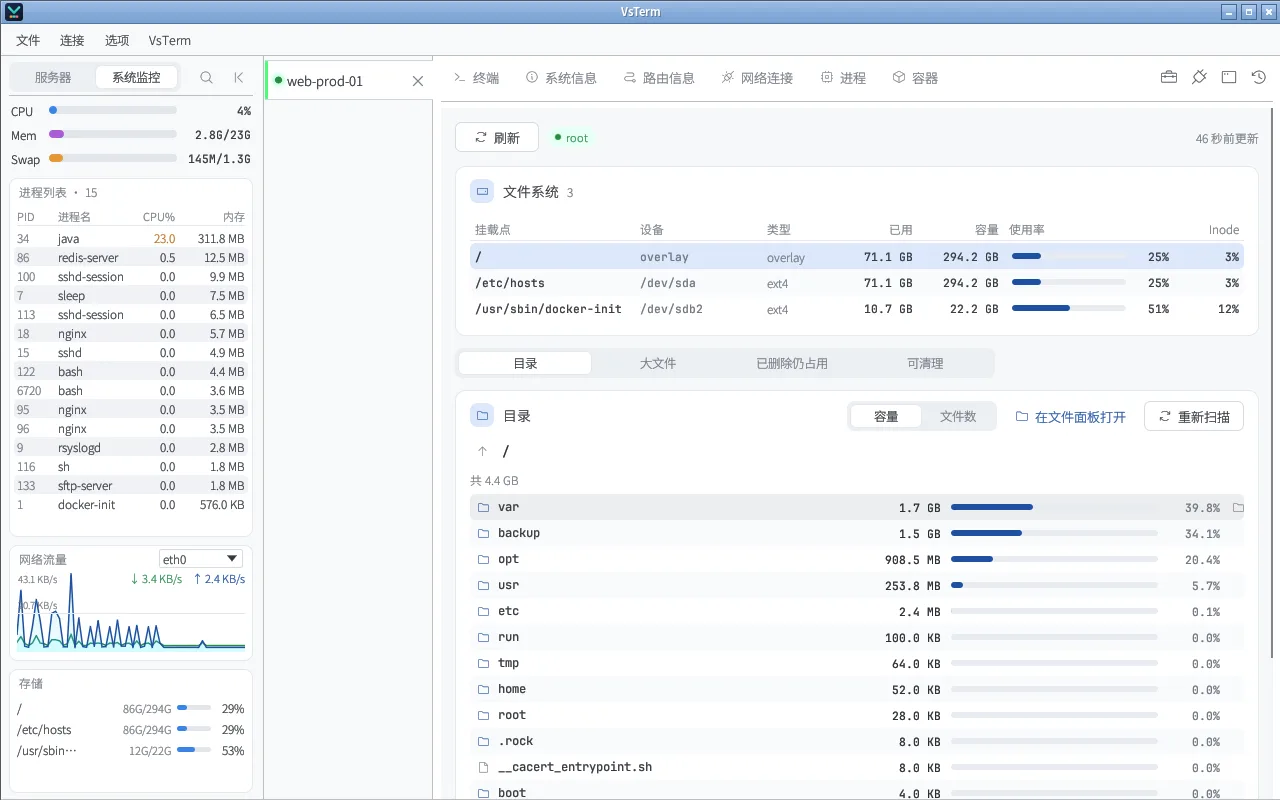
磁盘分析:逐层查看目录占用,低优先级扫描,不影响业务

能做什么

从排查到配置,一套工具

找出谁占满了磁盘

按目录逐层下钻,按大小或文件数看;列出大文件;找出已删除但仍被进程占用的文件。扫描以最低优先级运行,可随时取消。

免费

安全清理

systemd 日志、已轮转的旧日志、崩溃转储、软件包缓存,每项显示预计释放的空间,确认后执行;正在写入的大日志可以「截断」为 0 字节,立即释放空间,进程照常运行。

免费

磁盘、分区、LVM、SMART

一张表看清所有磁盘和分区的挂载、使用率与文件系统;SMART 健康、内核 I/O 错误、被改成只读的文件系统都会提醒。

免费

初始化与扩容

新加的空白盘一键分区、格式化、挂载并写入 fstab;云盘扩容后自动识别可扩展的分区、LVM 和文件系统。

免费

测速、swap、fstab

fio / dd 测速;创建或删除 swap 文件、调 swappiness;检查 fstab 写错、重复和没挂上的项。

免费

网络存储向导

NFS(含阿里云 NAS、腾讯云 CFS、AWS EFS 预设)、SMB、对象存储(OSS、COS、R2、S3)、iSCSI;把新盘加入 LVM 卷组。

Pro

怎么用

几个典型场景

1磁盘快满了

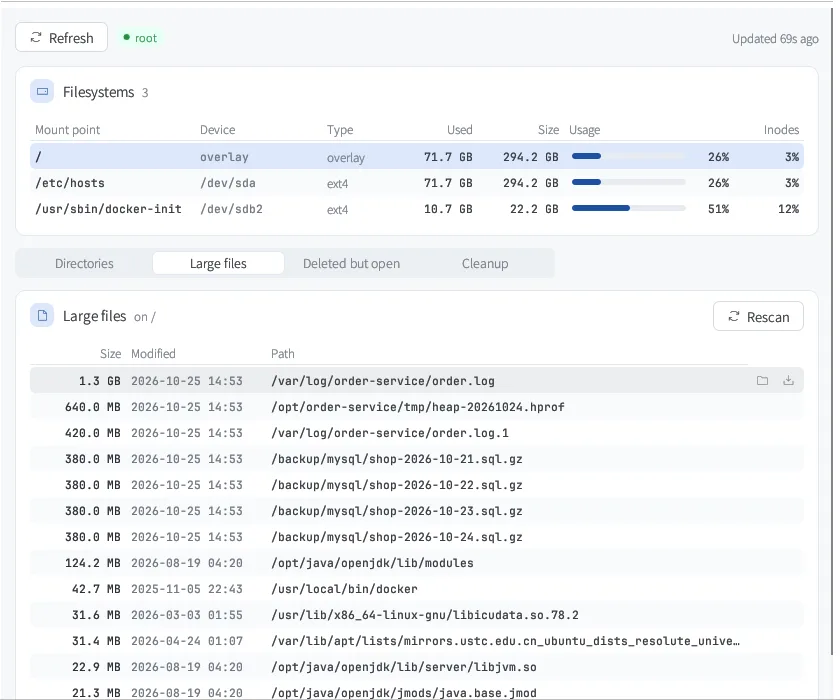
打开工具箱 →「磁盘分析」,选中要查的文件系统点「扫描」,从最大的目录一路点进去。

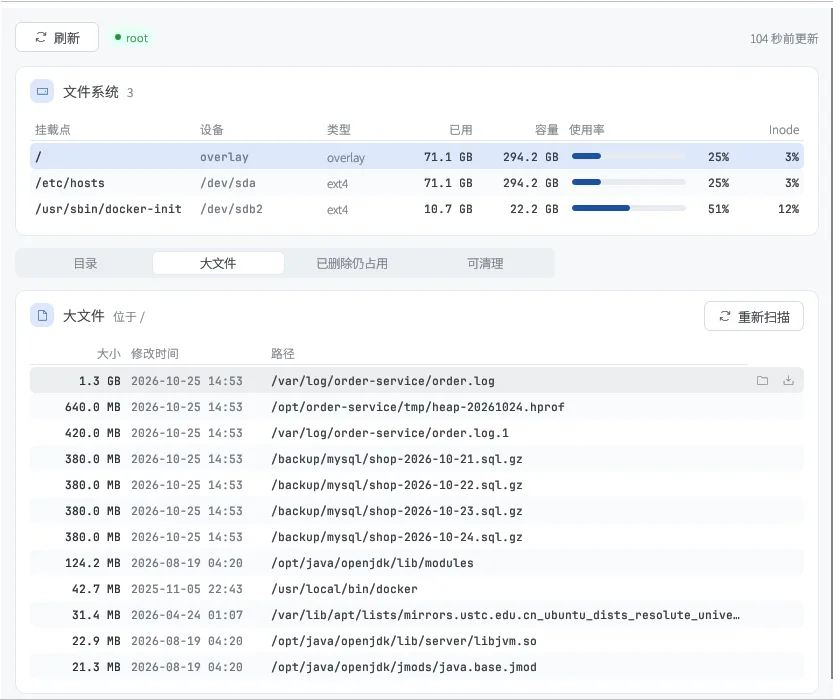
  • 「大文件」页按大小列出超过 20 MB 的文件
  • 「已删除仍占用」找出删了却没释放空间的文件
  • 「可清理」给出安全的清理项
大文件列表

2云服务器加了一块数据盘

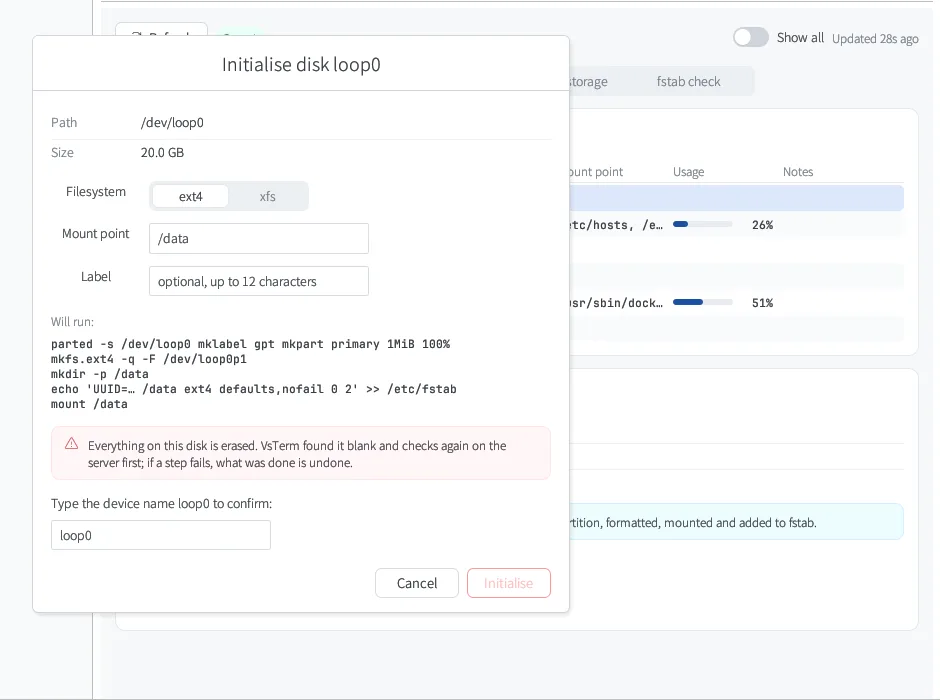
打开「磁盘管理」,空白盘会标出来。选中后点「初始化…」,选文件系统和挂载点,确认后完成分区、格式化、挂载和 fstab。
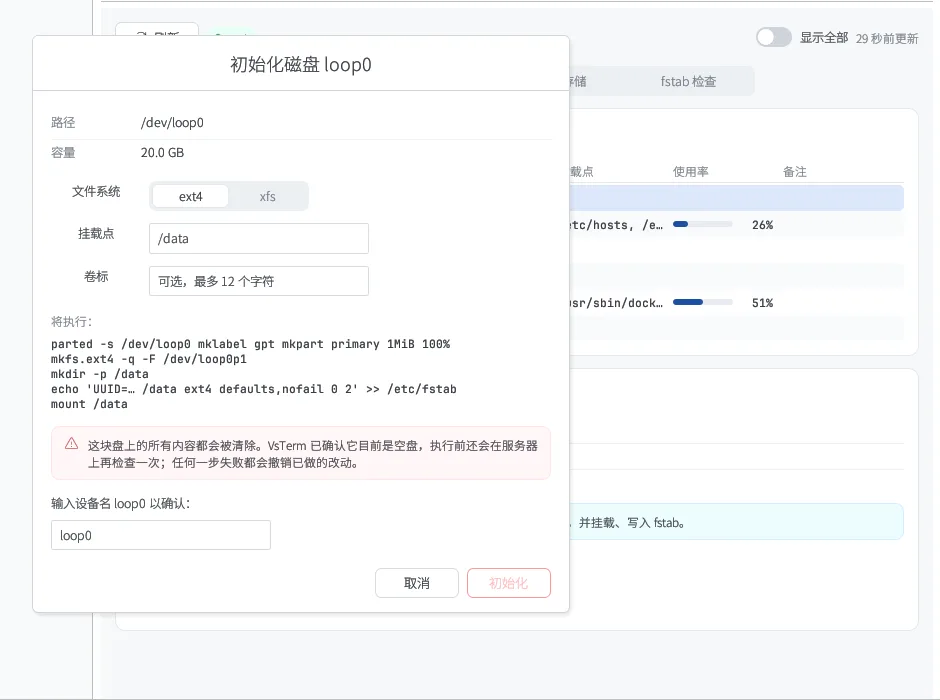
初始化磁盘对话框

3挂载 NAS 或对象存储

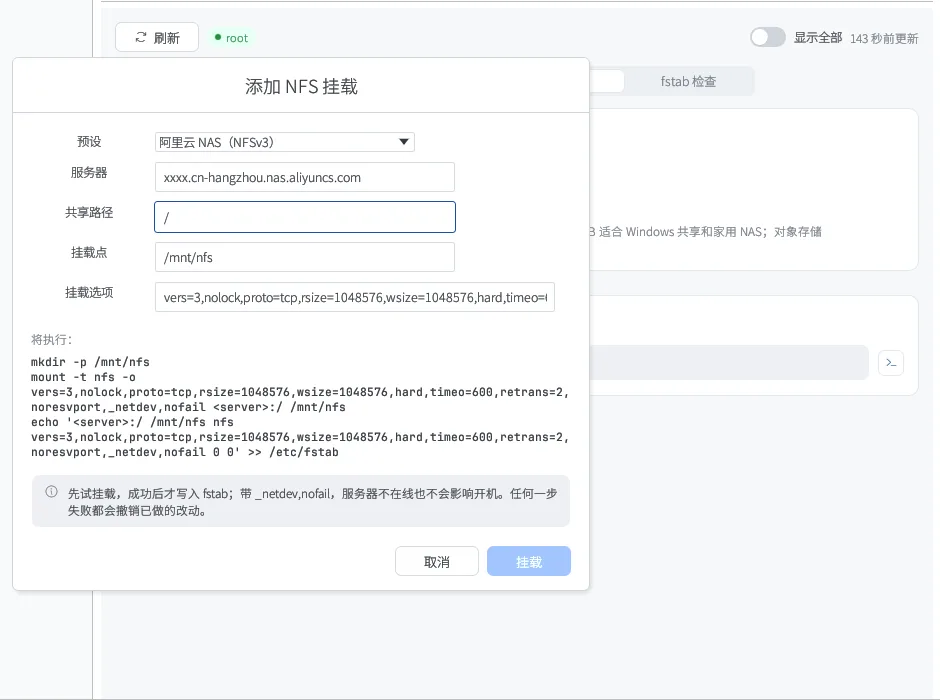
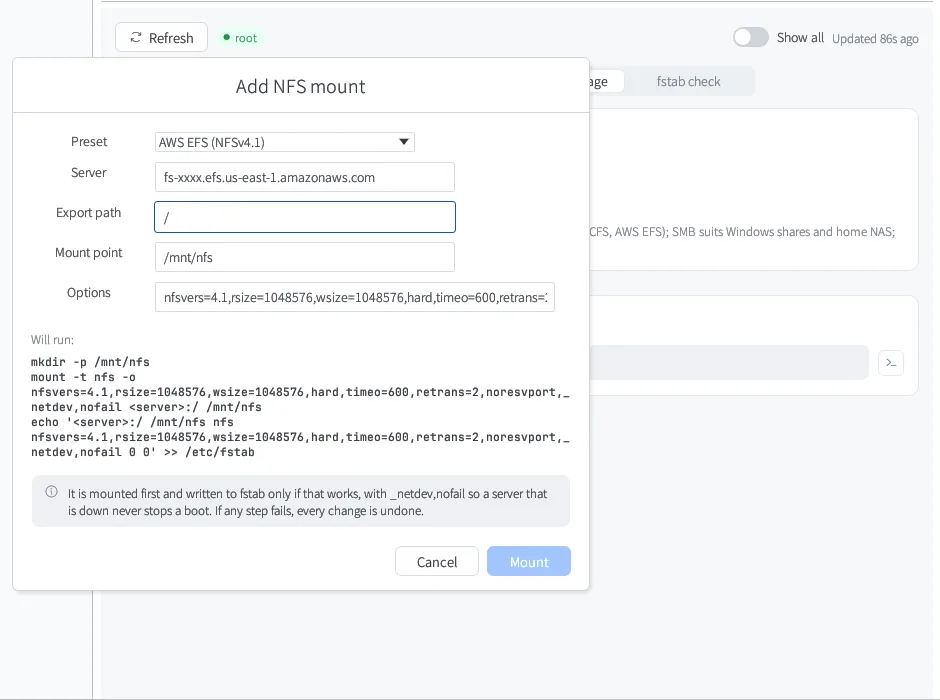
切到「网络存储」,选择 NFS、SMB 或对象存储。选择云厂商预设后挂载参数自动填好,先试挂载,成功才写入 fstab。

  • SMB 密码和对象存储密钥只通过标准输入传给服务器,不出现在命令行里
  • 带 _netdev,nofail,NAS 掉线也不影响开机
添加 NFS 挂载

4查看磁盘和健康状况

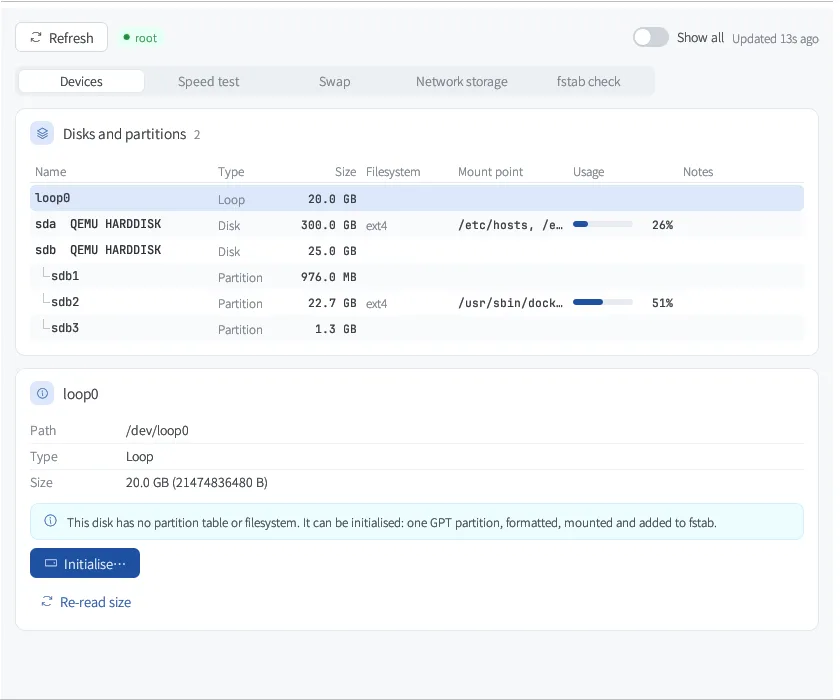
「设备」页列出磁盘、分区、LVM 与挂载点,选中可看详情;SMART 告警、内核 I/O 错误会显示在顶部。
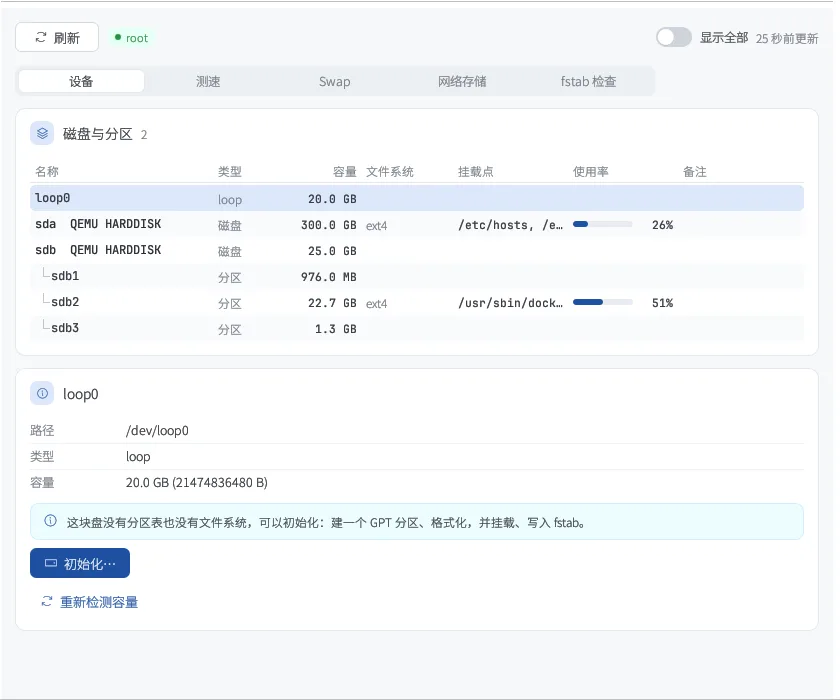
磁盘与分区

标准版与 Pro

哪些免费,哪些是 Pro

原则很简单:查看、排障和撤销永远免费;省时间的配置向导和深度工具属于 Pro。每台新安装都能免费试用 14 天 Pro。

功能标准版Pro
磁盘分析:目录、大文件、已删除仍占用
安全清理
磁盘 / 分区 / LVM / SMART / fstab 检查
测速、swap
初始化新盘、云盘扩容后扩展
NFS / SMB / 对象存储挂载向导、连接 iSCSI14 天试用
把新盘加入 LVM 卷组14 天试用
查看、重新挂载、卸载、删除、断开已有网络存储

完整对比与价格 →

常见问题

关于这个功能

试用结束后,挂好的存储还能用吗?

能。挂载写在服务器自己的 fstab 里,和 VsTerm 无关。查看、卸载、删除、断开这些操作永远免费。

会不会误格式化有数据的盘?

初始化只对确认是空白的磁盘开放(没有分区表、文件系统、LVM、挂载或 swap),执行前在服务器上再检查一次,还要你输入设备名确认。

扫描会拖慢服务器吗?

扫描以最低 CPU 和 I/O 优先级运行,有超时,不跨文件系统,可随时取消;脚本不写临时文件,磁盘满了也能用。

需要 root 吗?

查看大多不需要。需要 root 的操作可在应用内输入 sudo 密码,密码只保存在内存中,通过标准输入交给 sudo。

装上试试,14 天 Pro 随便用

免费下载,本地使用完全离线。

Toolbox · Disk analysis · Disk management

Full disk, new disk, NAS to mount —
no commands to look up

Disk analysis finds what is filling the disk, down to deleted files still held open. Disk management shows disks, partitions, LVM and health, initialises a new disk and grows filesystems after a cloud resize. Wizards mount NFS shares, SMB, object storage and iSCSI.

  • Every command is shown before it runs
  • If a step fails, what was done is undone
  • In-app sudo, password kept in memory only
VsTerm Disk analysis
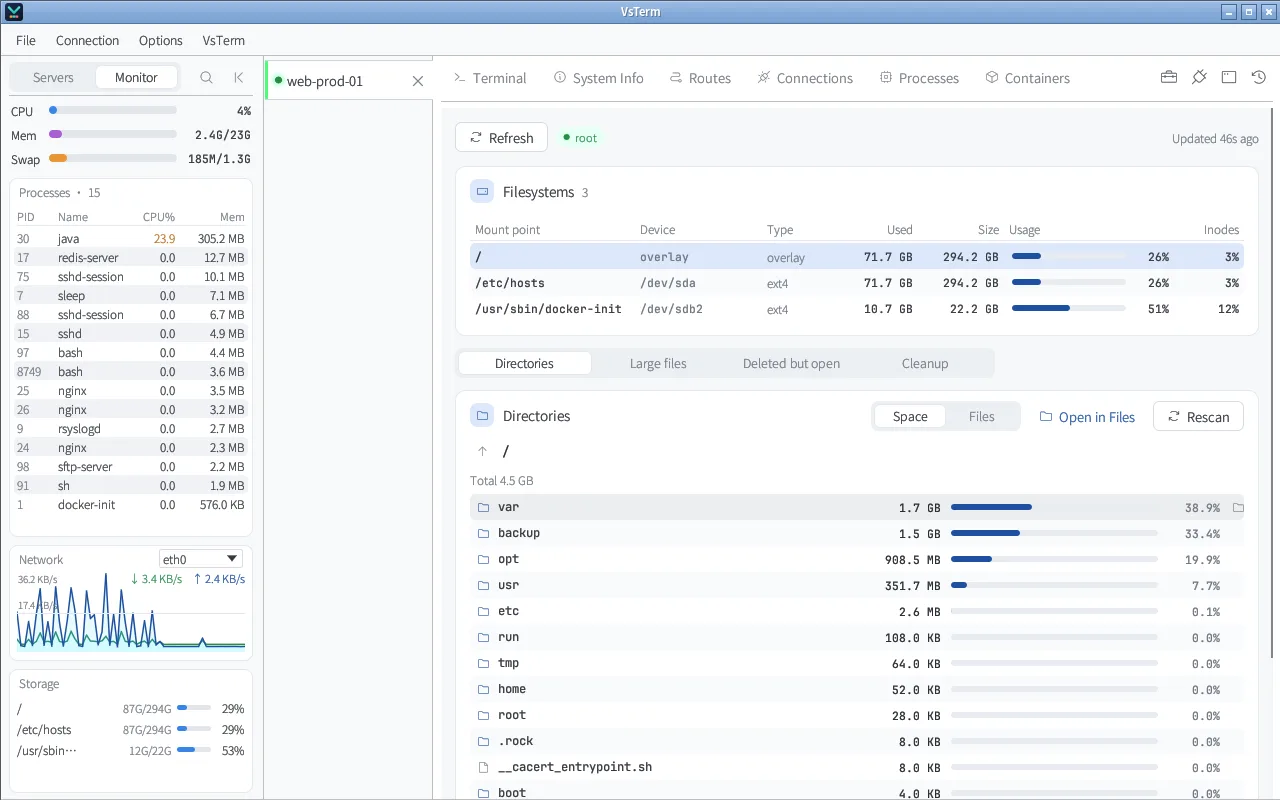
Disk analysis: drill into directories; scans run at idle priority

What it does

From troubleshooting to setup

Find what fills the disk

Drill into directories by size or file count, list large files, and find deleted files still held open. Scans run at idle priority and can be cancelled.

Free

Safe cleanup

The systemd journal, rotated logs, crash dumps and package caches, each with the space it frees and run only after you confirm; a large log still being written can be truncated to 0 bytes while the process keeps running.

Free

Disks, partitions, LVM, SMART

One table for every disk and partition with mounts, usage and filesystem; SMART health, kernel I/O errors and filesystems turned read-only are flagged.

Free

Initialise and grow

Partition, format, mount and add a blank disk to fstab in one go; after a cloud resize, the partitions, LVM and filesystems that can grow are found for you.

Free

Speed, swap, fstab

fio / dd speed tests; create or remove a swap file and set swappiness; catch fstab typos, duplicates and entries that are not mounted.

Free

Network storage wizards

NFS (Alibaba Cloud NAS, Tencent CFS, AWS EFS presets), SMB, object storage (OSS, COS, R2, S3) and iSCSI; add a new disk to an LVM volume group.

Pro

How to use it

Typical jobs

1The disk is nearly full

Open Toolbox → Disk analysis, pick the filesystem and click Scan, then click into the biggest directories.

  • Large files lists everything over 20 MB
  • Deleted but open finds space that was never released
  • Cleanup offers safe cleanups
Large files

2A new data disk on a cloud server

Open Disk management: blank disks are marked. Select one, click Initialise…, choose a filesystem and mount point, and confirm.

Initialise disk dialog

3Mount a NAS or object storage

Under Network storage, pick NFS, SMB or object storage. A cloud preset fills in the mount options; it mounts first and writes fstab only if that works.

  • SMB passwords and object storage keys reach the server on stdin, never on a command line
  • _netdev,nofail means a NAS that is down never stops a boot
Add NFS mount

4Check disks and health

Devices lists disks, partitions, LVM and mount points; select one for details. SMART warnings and kernel I/O errors show at the top.

Disks and partitions

Standard vs Pro

What is free, what is Pro

The rule is simple: viewing, troubleshooting and undo are always free; the time-saving setup wizards and deep tools are Pro. Every new install gets a 14-day Pro trial.

CapabilityStandardPro
Disk analysis: directories, large files, deleted but open
Safe cleanup
Disks / partitions / LVM / SMART / fstab check
Speed test, swap
Initialise new disks, grow after a cloud resize
NFS / SMB / object storage wizards, connect iSCSI14-day trial
Add a disk to an LVM volume group14-day trial
View, remount, unmount, remove, disconnect existing storage

Full comparison and prices →

FAQ

About this feature

Do mounts keep working after the trial?

Yes. Mounts live in the server's own fstab and have nothing to do with VsTerm. Viewing, unmounting, removing and disconnecting are always free.

Could it format a disk that has data?

Initialise is offered only for disks that are verifiably blank (no partition table, filesystem, LVM, mount or swap), is checked again on the server, and asks you to type the device name.

Will a scan slow the server down?

Scans run at the lowest CPU and I/O priority with a timeout, stay on one filesystem and can be cancelled; the scripts write no temp files, so a full disk is fine.

Do I need root?

Mostly not for viewing. For root-only actions you can enter the sudo password in the app; it stays in memory and reaches sudo on stdin.

Try it — Pro is free for 14 days

Free download. Local use works fully offline.